Help & Documentation

Tutorial
Compatibility
The P&ID Connector is compatible with the following AutoCAD, AutoCAD Plant 3D and Revit versions:
AutoCAD
2021, 2022, 2023, 2024, 2025, 2026, 2027
AutoCAD Plant 3D
2021, 2022, 2023, 2024, 2025, 2026, 2027
Revit
2022, 2023, 2024, 2025, 2026
P&ID Connector workflow
1. Export from AutoCAD / Plant 3D
Open your P&ID scheme in AutoCAD or Plant 3D.
Use the P&ID Connector Exporter plug-in to create a JSON file of the schema.
Details per platform:
AutoCAD Exporter
The plug-in exports block references.
The exported parameters are the block attributes of these blocks.
Plant 3D Exporter
The plug-in exports lines and their assigned plant elements.
The parameters that are exported come from the internal P&ID element properties of Plant 3D.
When using Plant 3D, the elements are additionally grouped by pipe (e.g. pipe 10: valve A, sensor B, pipe C).
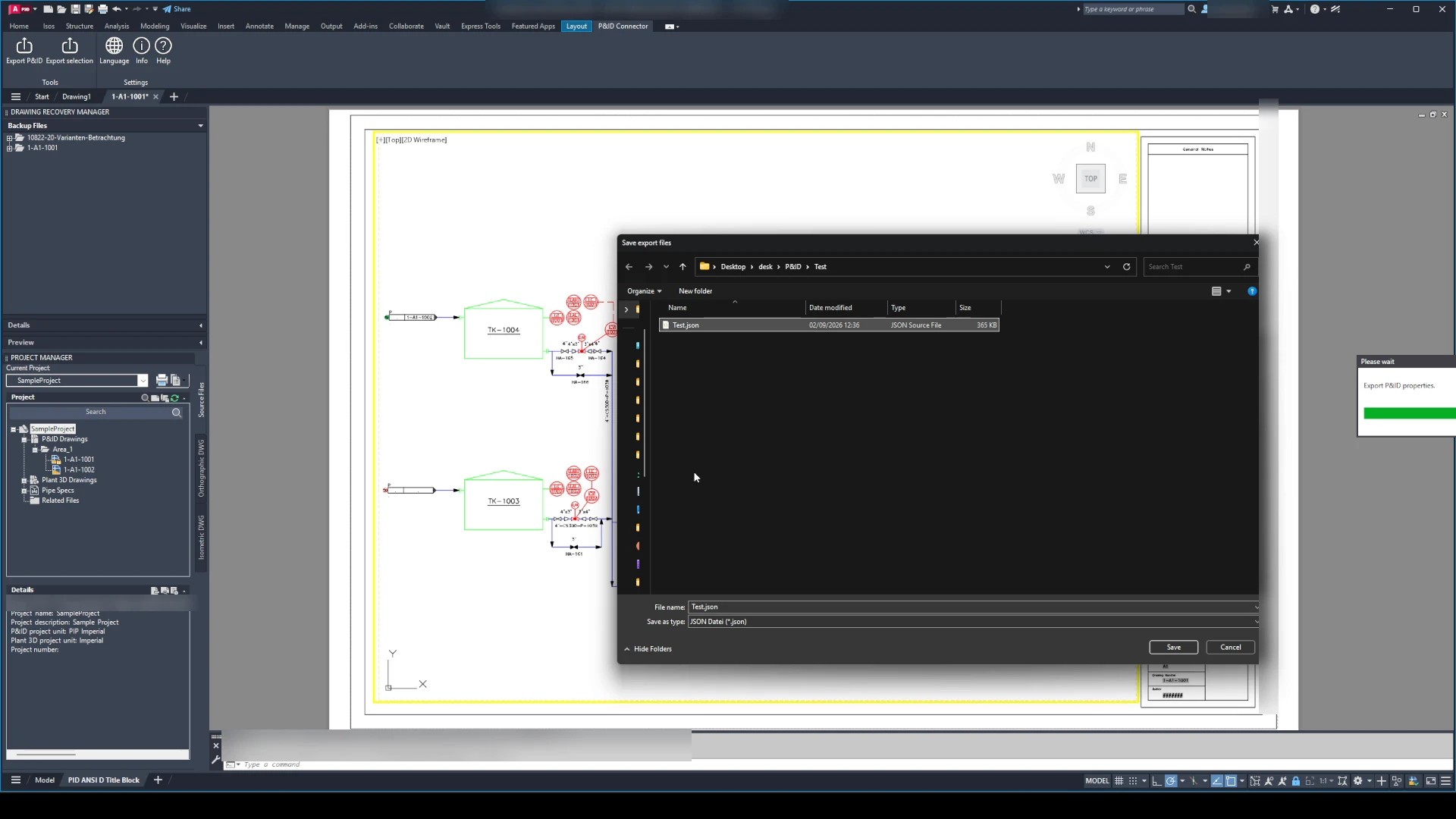
JSON export from AutoCAD
2. Import into Revit
Open your Revit project.
Start the P&ID Connector Importer plug-in.
Import the exported JSON file.
The plug-in displays all P&ID elements in the viewer dialogue.
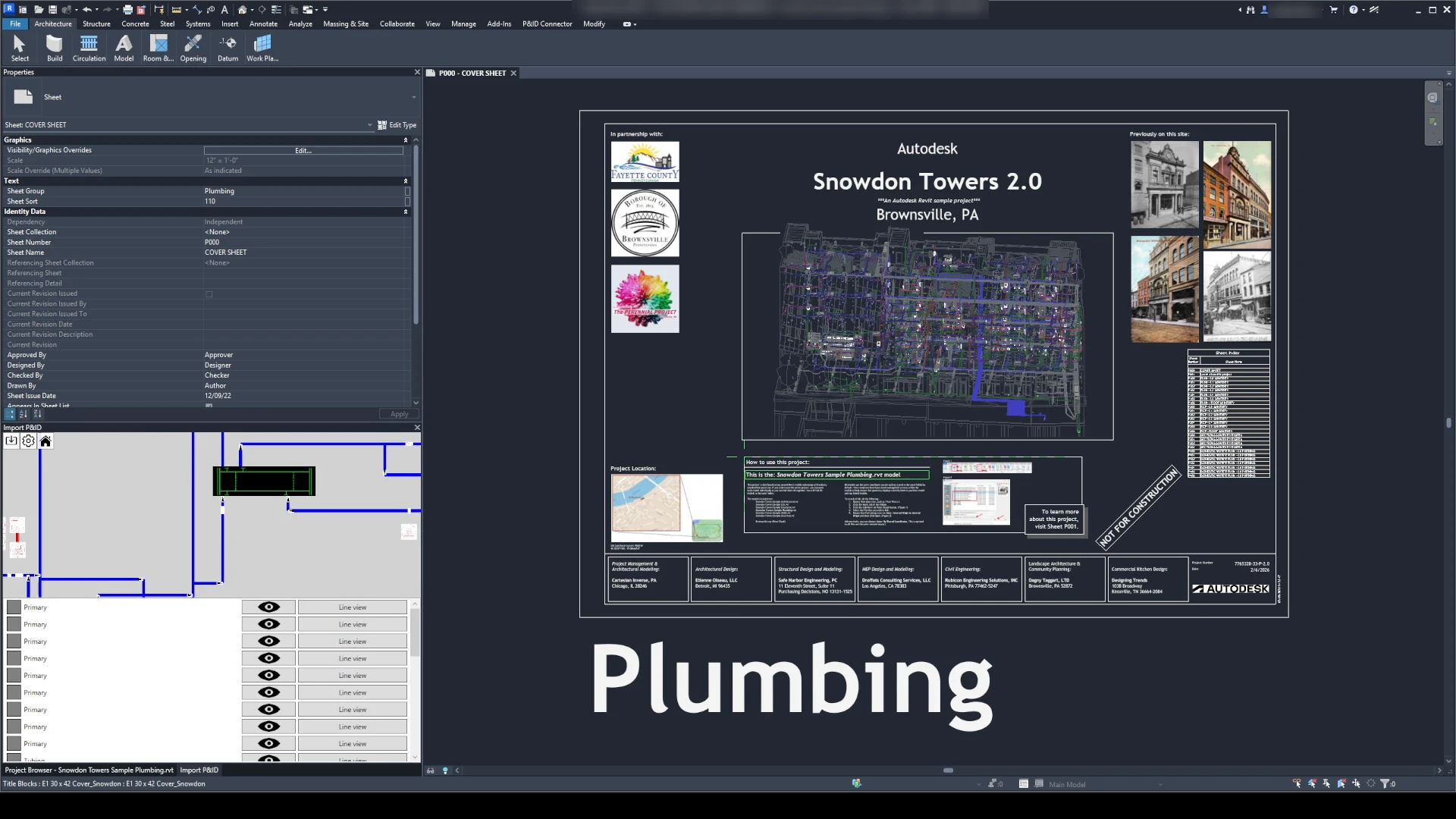
JSON import finished loading
3. Assignment of P&ID elements to Revit elements
In the viewer:
Select a P&ID element.
Then click on the corresponding Revit element to perform the link.
Select which P&ID parameters are to be imported.
Then select which Revit parameters these P&ID parameters are to be assigned to.
The properties are transferred and a green marker indicates the successful connection.
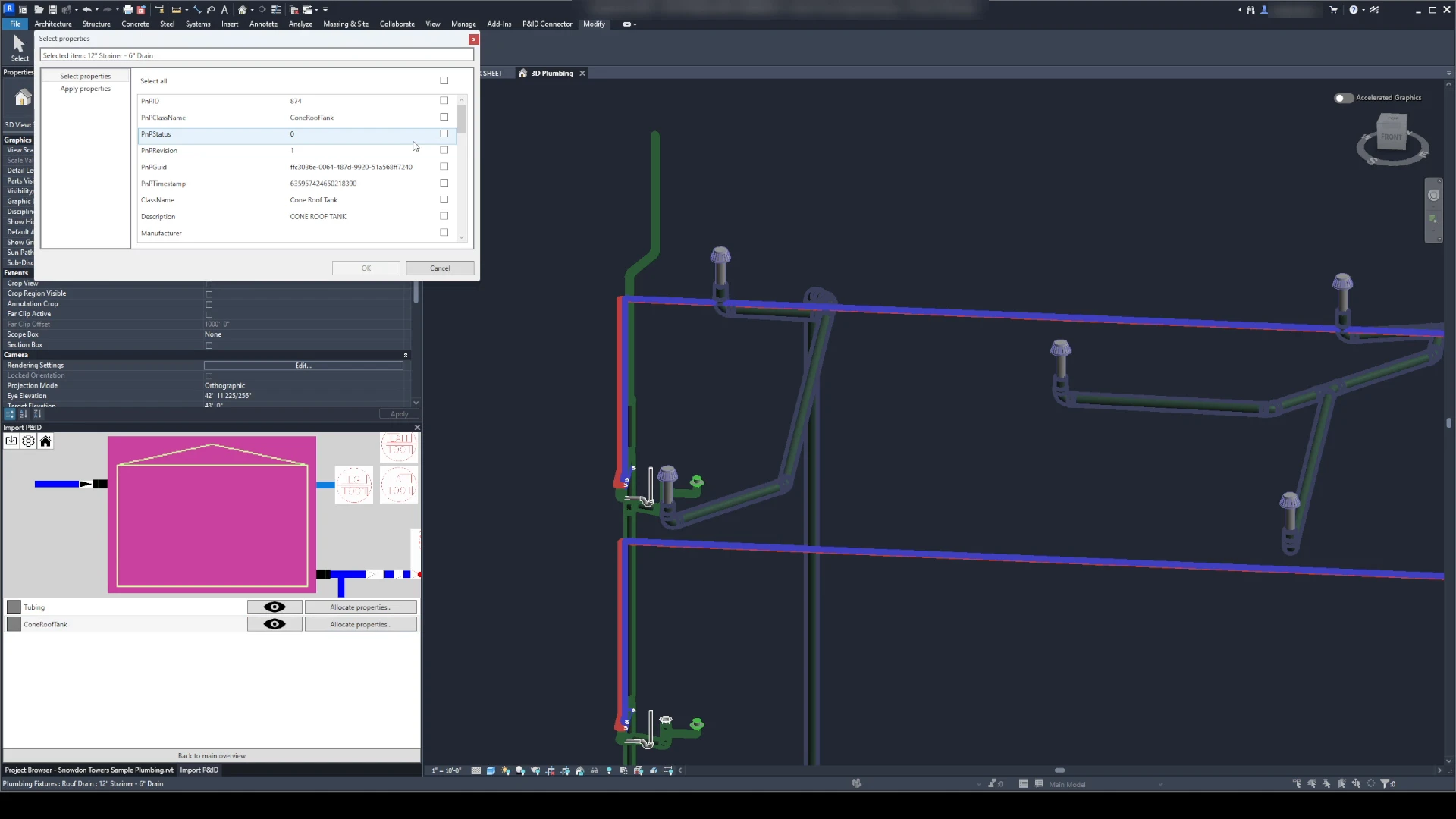
Select P&ID properties
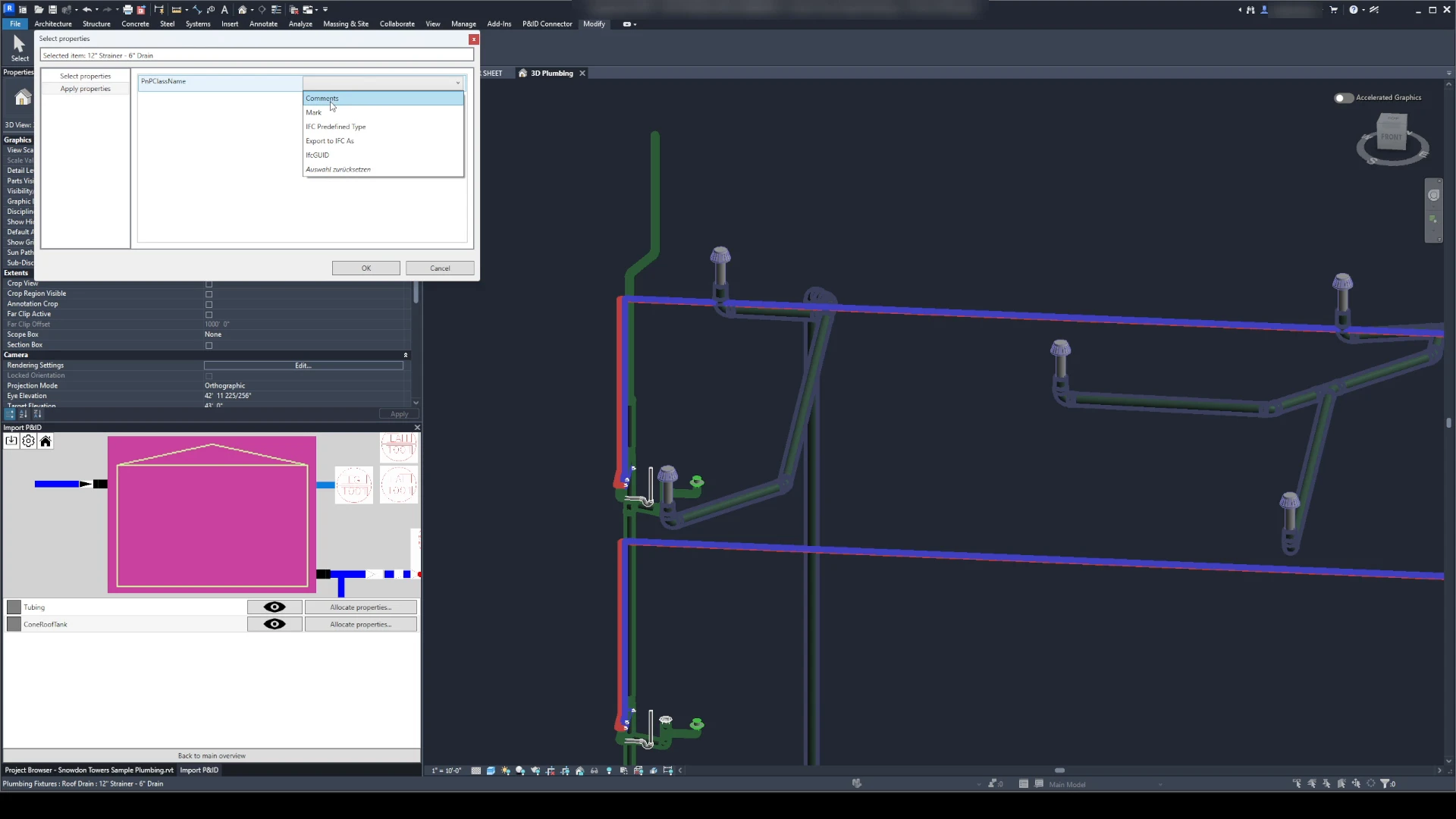
Assign P&ID properties
4. Quick assignment via class mapping
To speed up the assignment:
Use the “Class mapping” function.
Determine which P&ID class is linked to which Revit family or type.
Define in advance which P&ID properties are to be assigned to which Revit parameters.
This allows the assignment for matching elements to be made with one click.
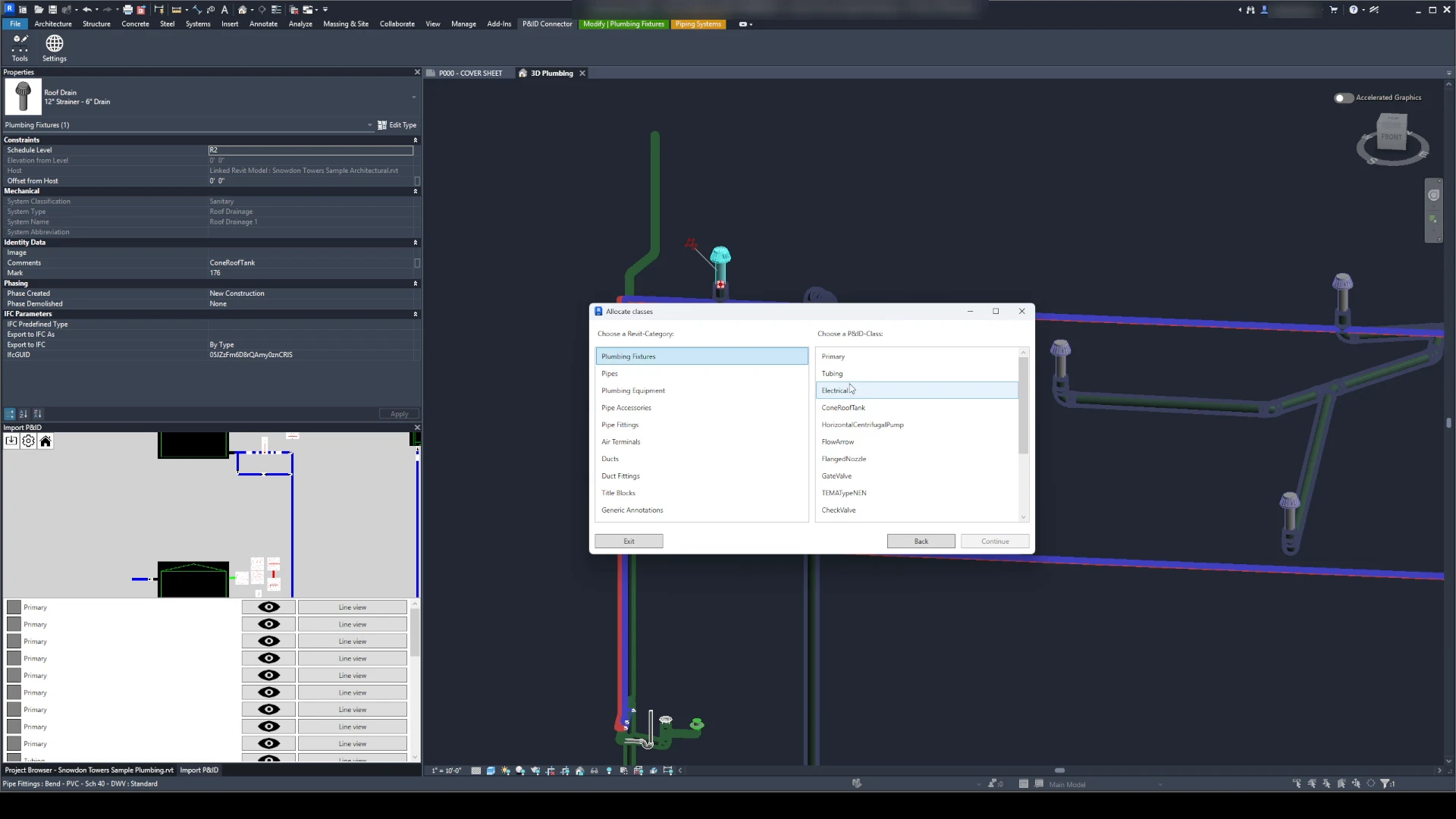
Class assignment
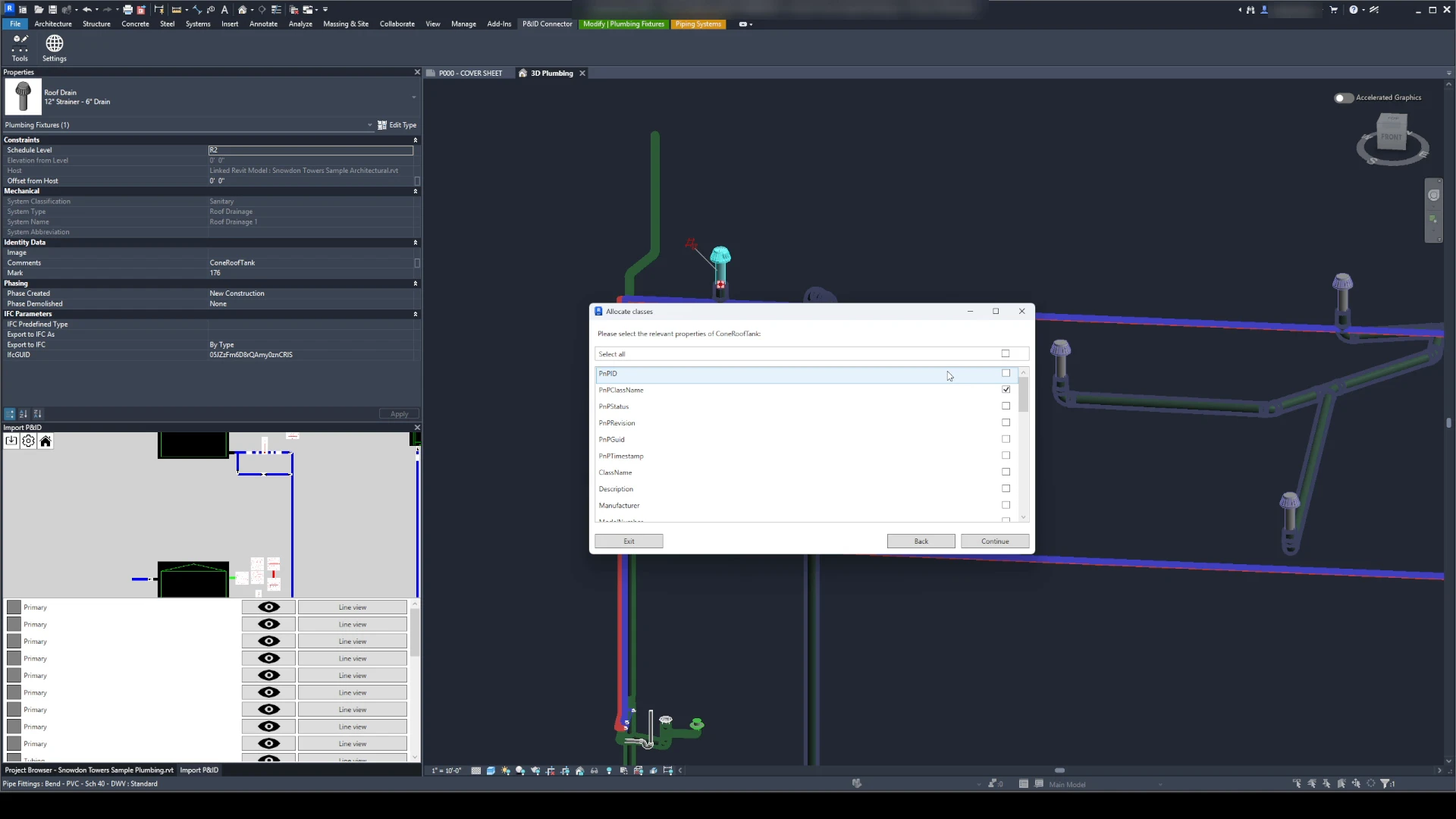
Select P&ID properties
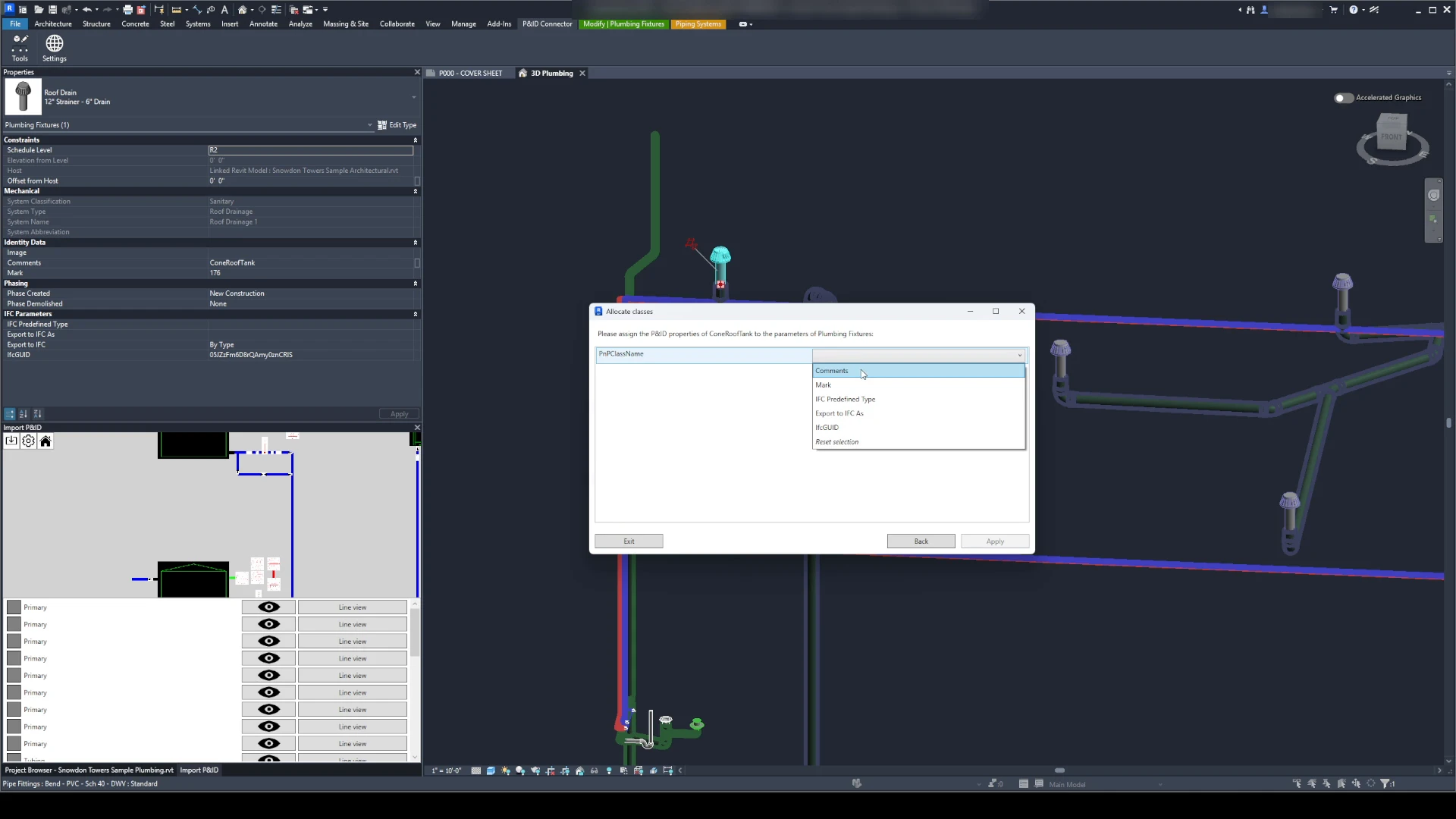
Assign P&ID properties
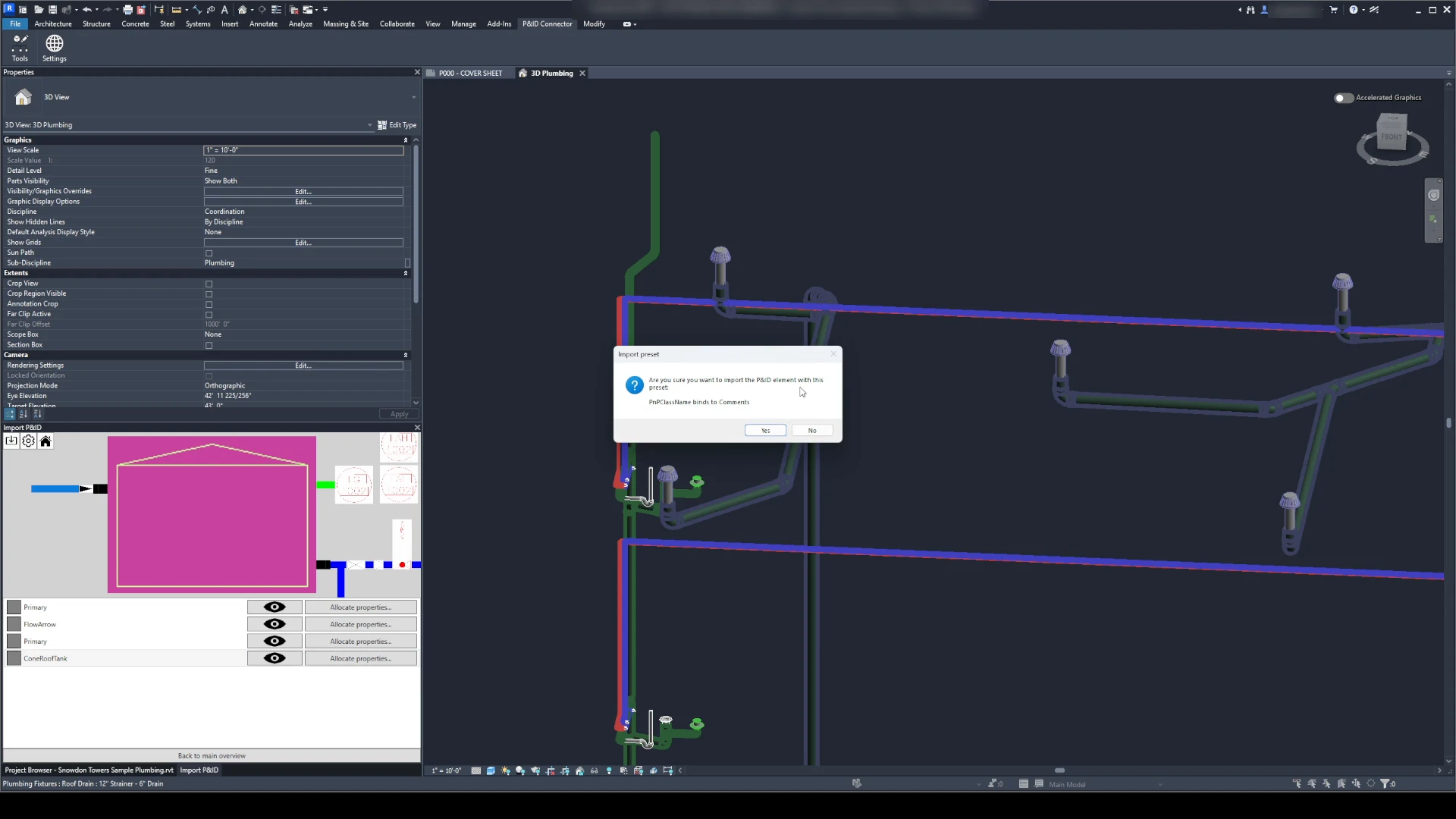
Assigned to class
5. Repeated import & change tracking
If the P&ID diagram has been revised:
Export an updated JSON file.
Import it into Revit again.
The plug-in recognises automatically:
New elements → are added to the element list and are available for future linking.
Removed elements → their existing assignments are removed.
Changed elements → are marked with a deviation indicator so that you can check the changes.
Result
A synchronised and up-to-date Revit model that reflects the latest P&ID data from AutoCAD or Plant 3D – including tracking of new, changed and deleted elements.
Export of P&ID properties between AutoCAD, Plant3D and Revit
This workflow is about exporting element properties of piping diagrams from AutoCAD and Plant3D.
In Revit, you import the generated JSON file that was exported from either AutoCAD or Plant3D. You then link the exported P&ID properties to a Revit object. When linking, the exported properties are written as parameters to the selected Revit object.
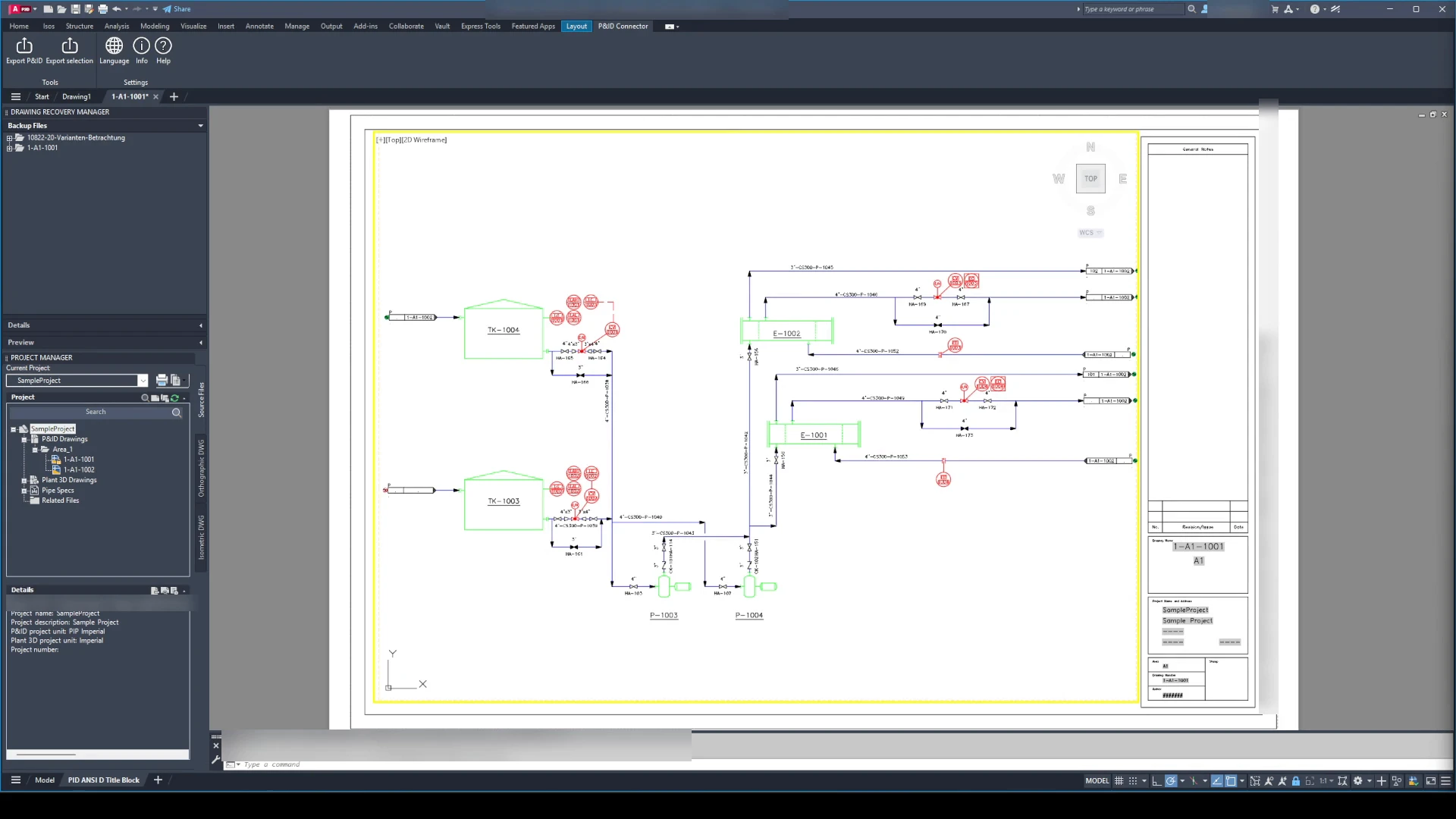
Plant3D main view with ribbon
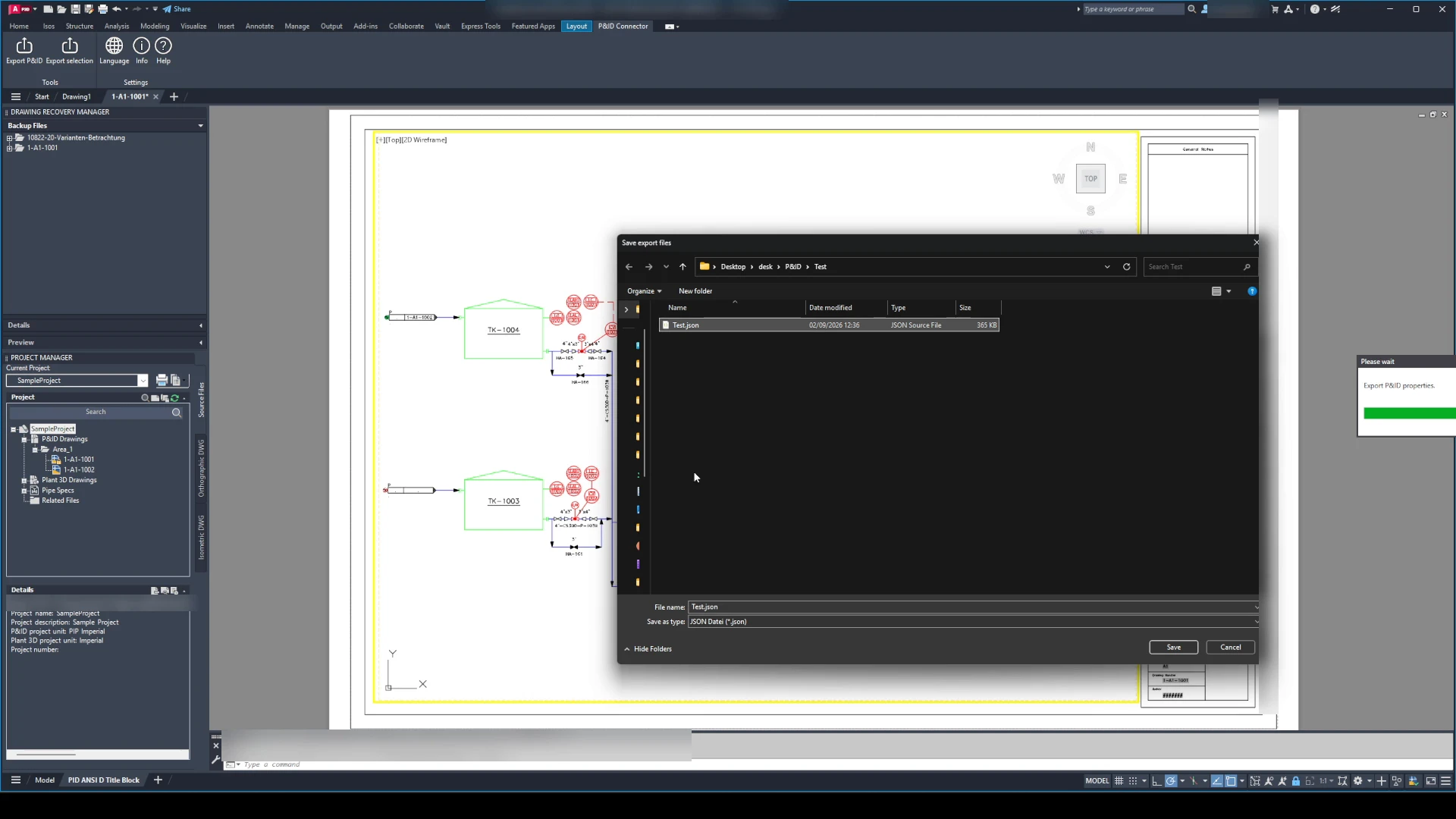
Plant3D export dialogue
Revit JSON loaded
Assign P&ID properties in Revit
AutoCAD export button
The AutoCAD plug-in offers two export buttons:
1.) Export entire drawing → This option exports the entire drawing.
2.) Export selection → This lets you export only a selection.
Both buttons create a JSON file that you have to save. Unlike Plant3D, AutoCAD only exports block references and their attributes as properties.
No P&ID-specific properties are exported, as these are not directly available in AutoCAD. After a successful export, each drawing receives a unique identification parameter. This lets you change the drawing and transfer the changes to the Revit drawing with an export.